
Getting to know the Dashboard
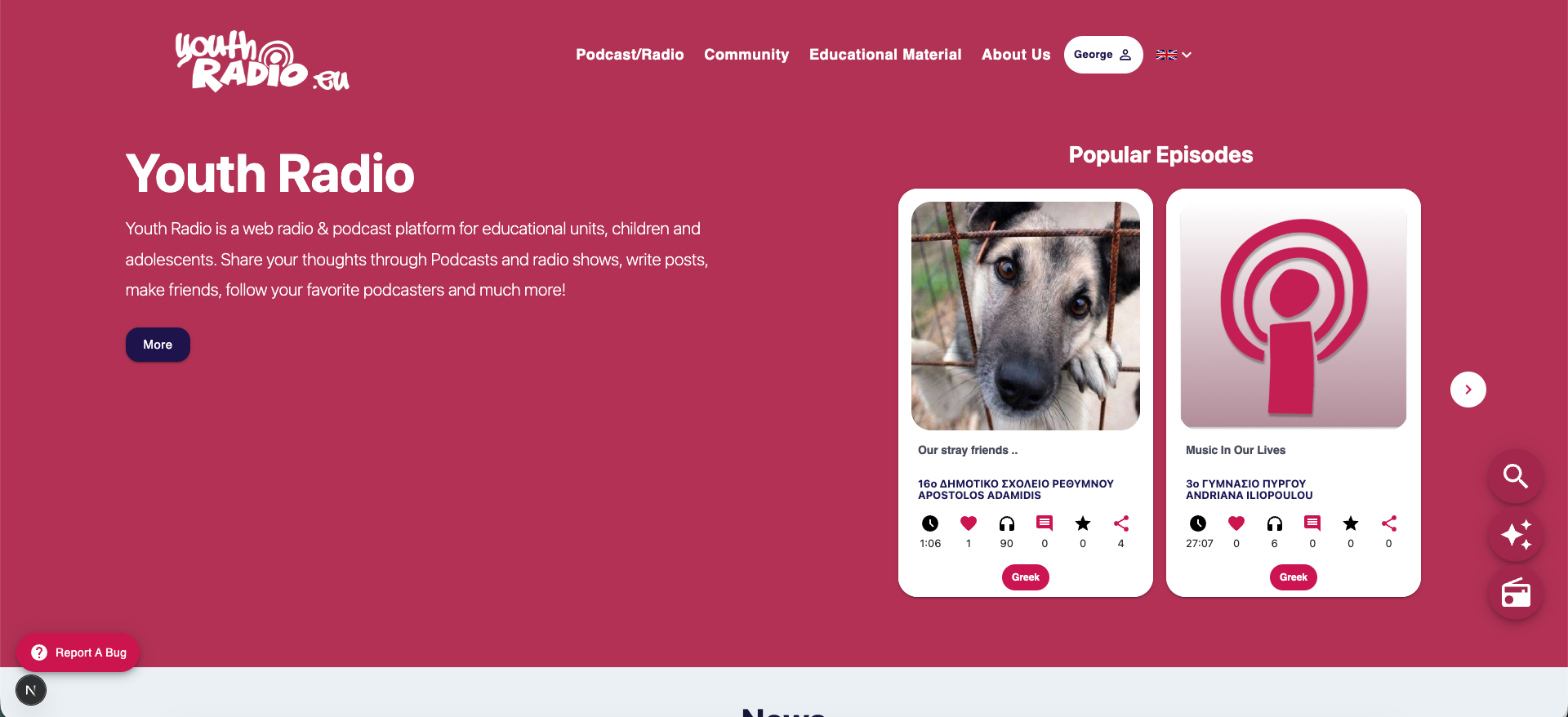
After successfully logging in, you will be taken to the platform’s Home Page.
This is where your every browsing session begins, as it brings together the basic navigation tools, content suggestions, and the radio player.

Central Navigation Bar
At the top of the screen is the Central Navigation Bar, which gives you direct access to all the main sections of the platform:
- Home: Return to the Home Page.
- Podcast/Radio: Access to Podcasts, the Radio Program, the radio playback page, as well as the AI Features of the platform.
- Community: Communication and collaboration with other groups and users, finding users and training units and viewing user activity.
- Educational Material: Access to the guides, and the educational material of the platform.
- User Selection: Manage your profile, settings and preferences, access your Podfolio and library and manage your training unit and learners.


Suggestions for You (AI)
In the main bar in the “Podcast/Radio” section, under the “Discover Podcasts” option, the platform — with the help of artificial intelligence (AI) — suggests podcasts that match your interests and activity.


Radio Player
At the bottom right of the page is the option to Play the Radio Stream — a solid tool that allows you to listen to the live European School Radio station at any time.
The Player remains active throughout your navigation through the platform and displays information such as what song is currently playing, what show is currently playing, and what is next.

Go to Library
From the main bar, at the user’s option, you are given the option to go to your Library — your personal activity center — where you can see the shows, Podcasts, and episodes you have uploaded, the shows you have signed up for as a partner, your playlists, and your listening history.


